> For the complete documentation index, see [llms.txt](https://docs.guardianservice.app/llms.txt). Markdown versions of documentation pages are available by appending `.md` to page URLs; this page is available as [Markdown](https://docs.guardianservice.app/technical-information/users/standard-registry-users-schemas-and-policies/policies/capture-replay-and-compare-data-for-published-policies/ui-demo-using-vm0042-policy.md).
# UI Demo using VM0042 Policy
1. Step By Step
2. Demo
### 1. Step by Step
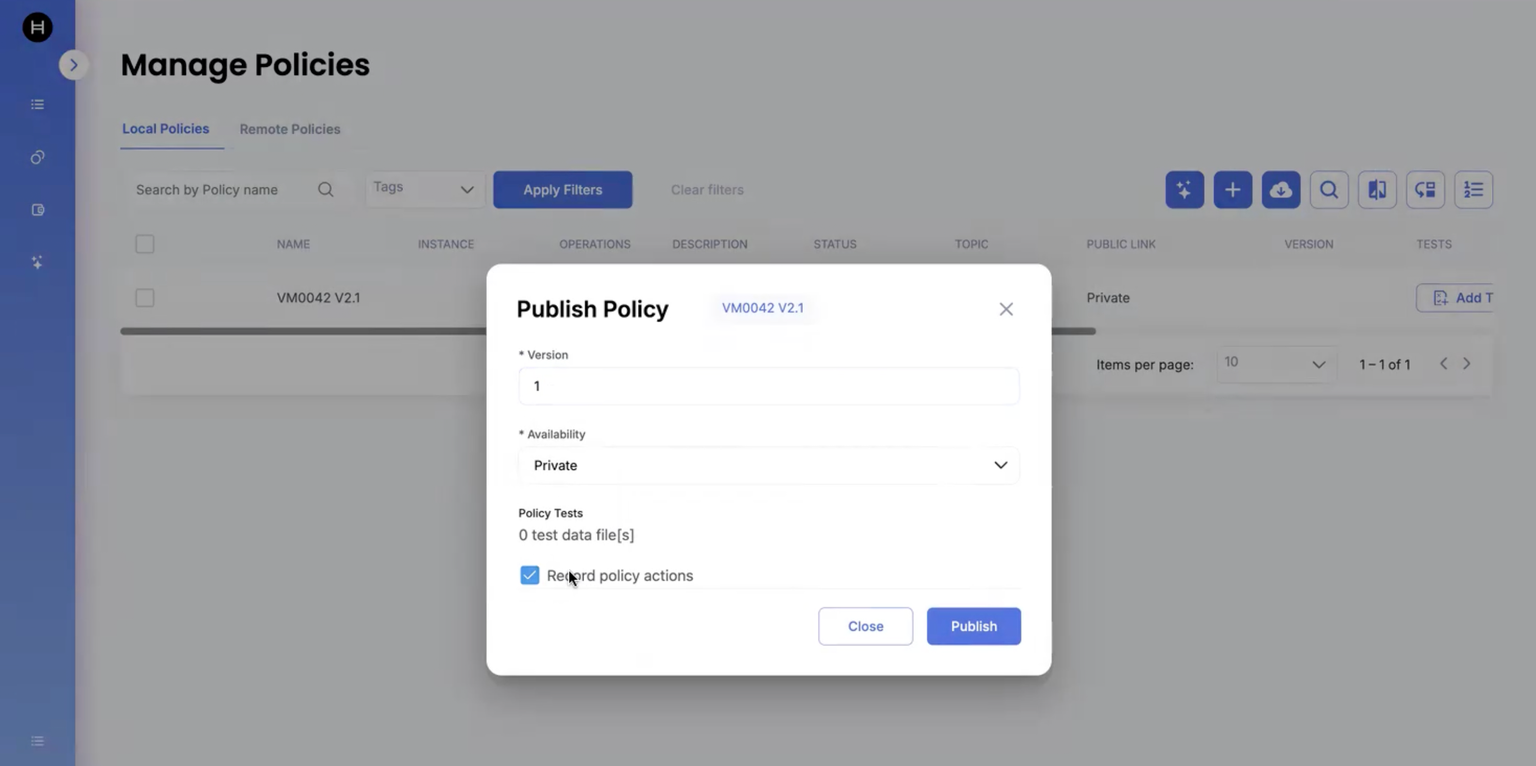
1. Import the VM0042 and publish the policy.
In the Publish Policy modal, highlight ☑ Record policy actions (enabled by default).
{% hint style="info" %}
Note: By default, Guardian records every action executed by the policy once it’s published.\
These actions are written to Hedera and stored immutably, with payloads in IPFS.”
{% endhint %}
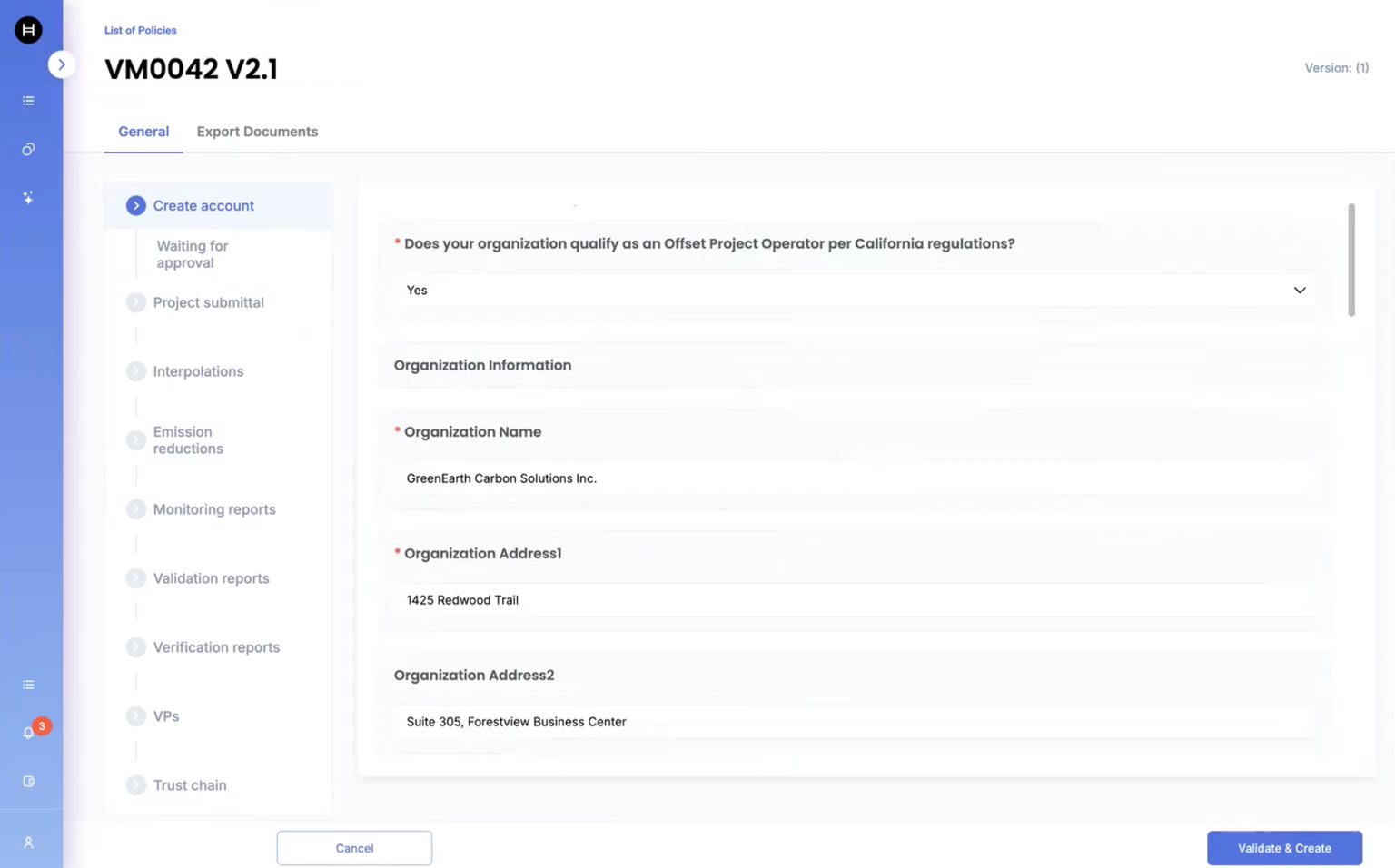
2. Once the policy is published, submit the Project Registration by logging in as Project Proponent:
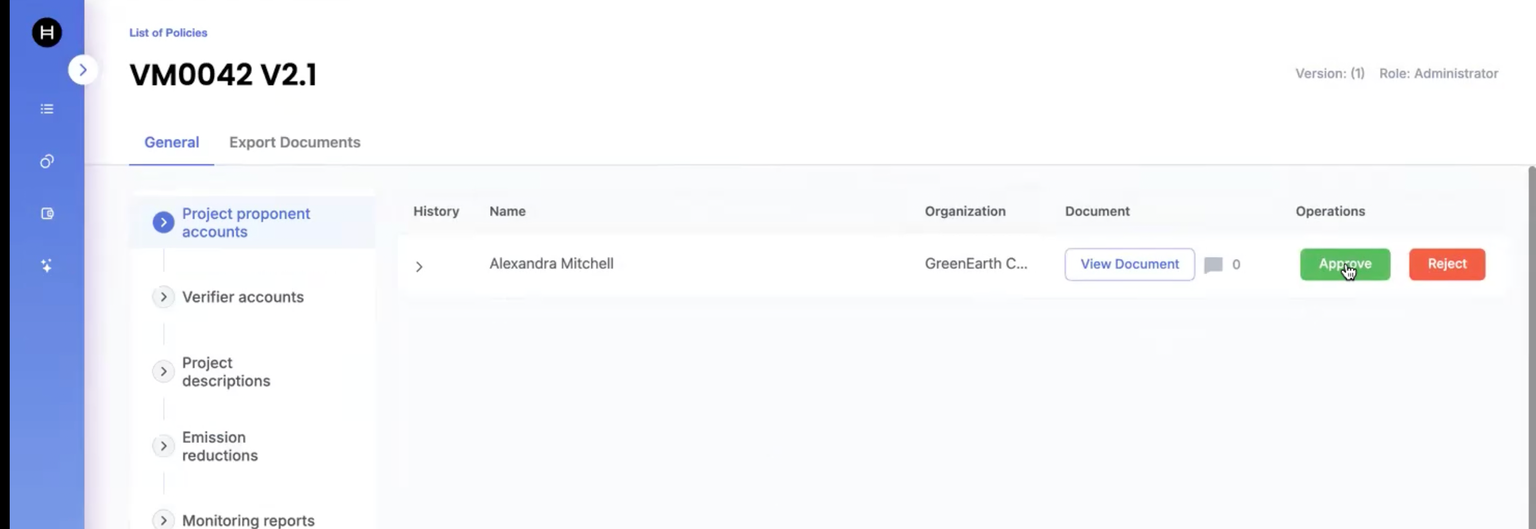
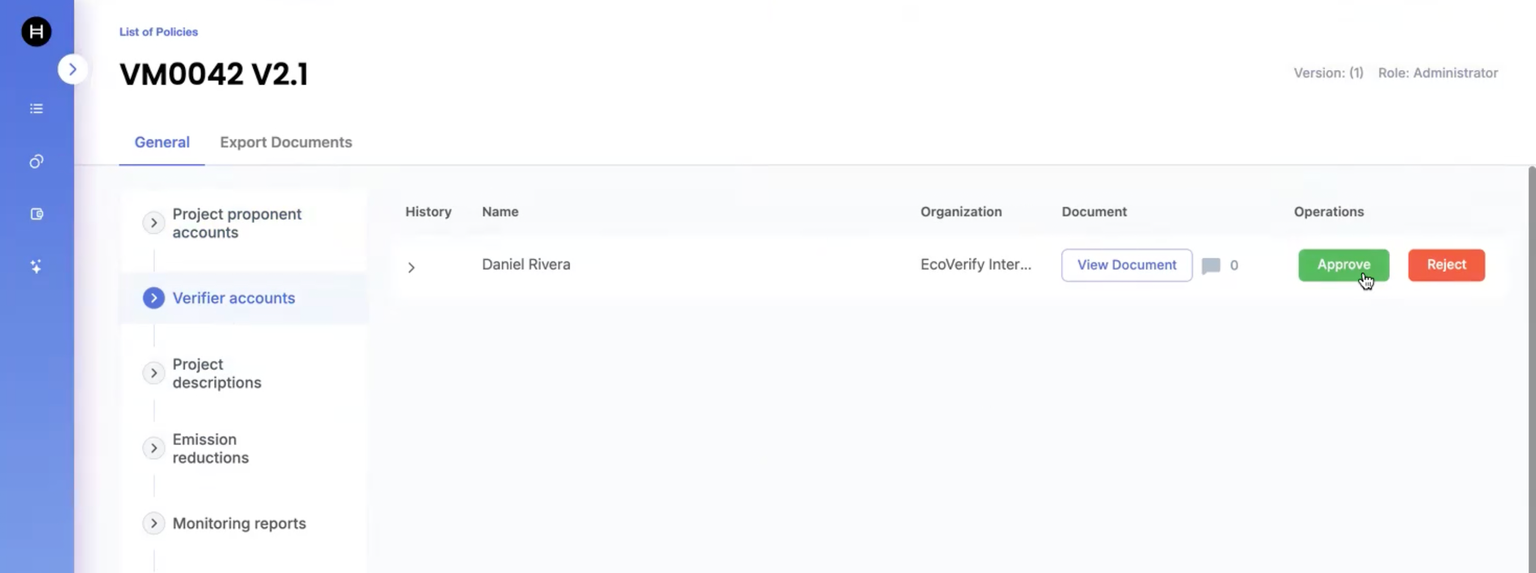
3. Login as Standard Registry and approve the Project Proponent:
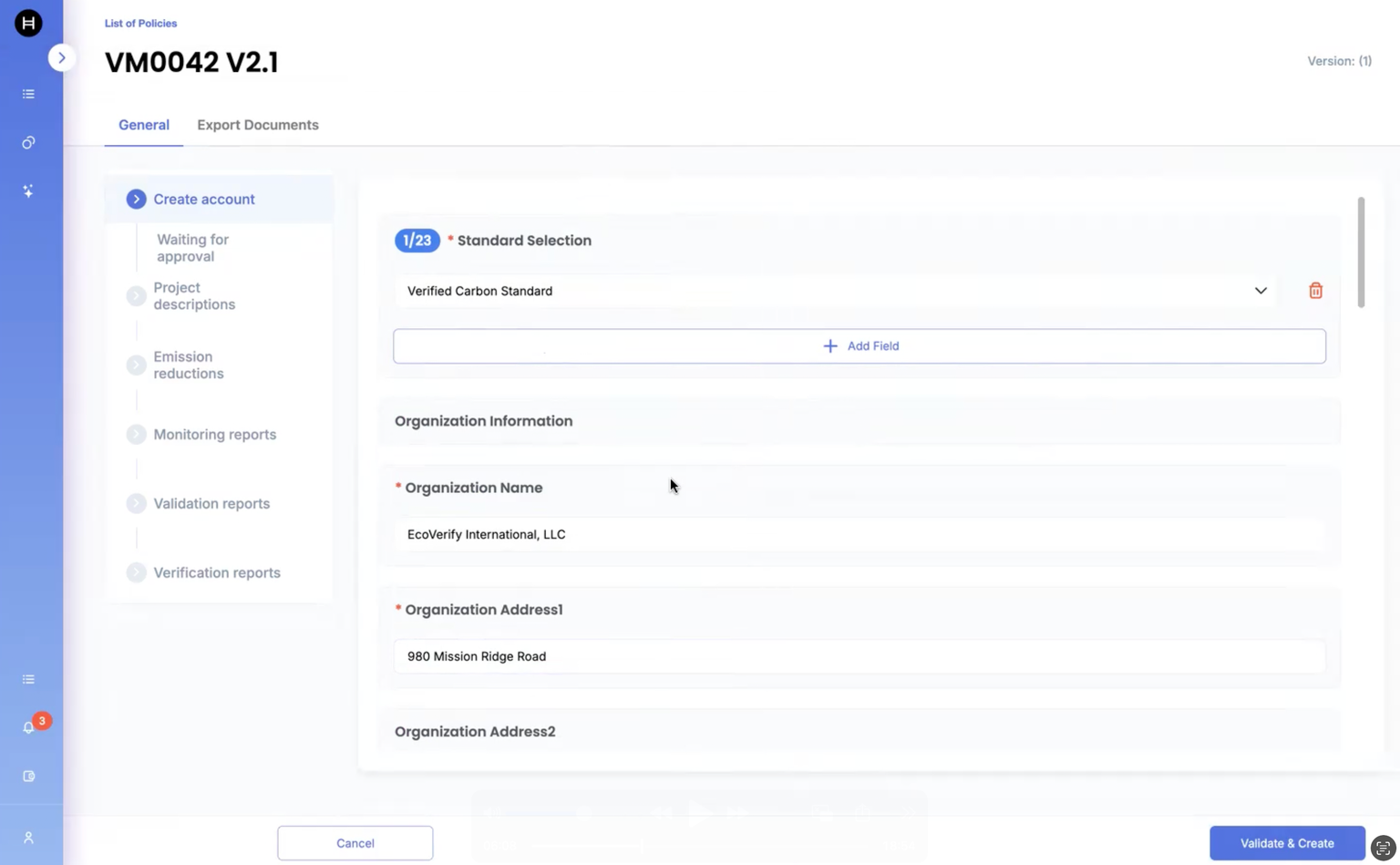
4. Login as VVB and submit VVB Registration:
5. Login as Standard Registry and approve the VVB:
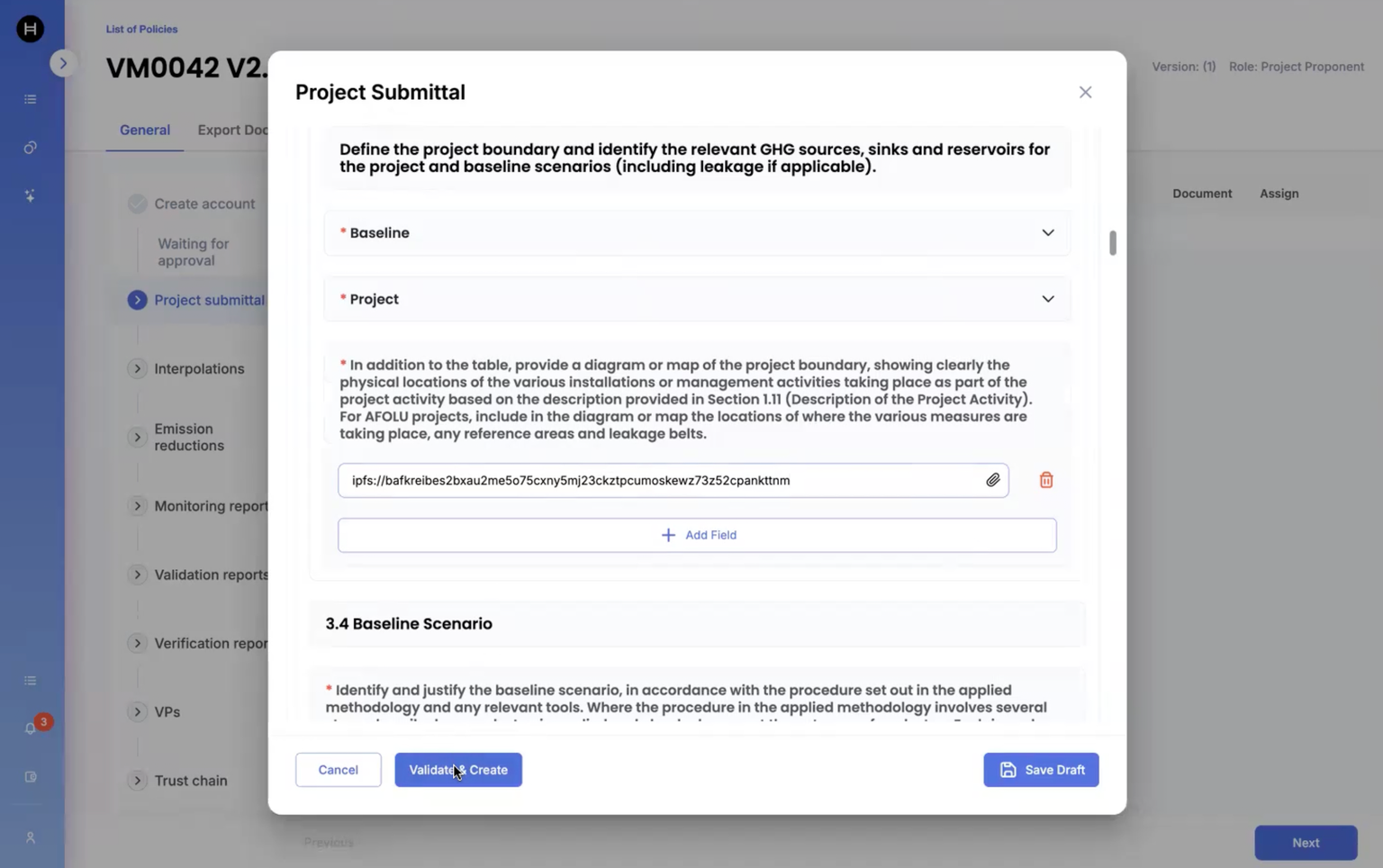
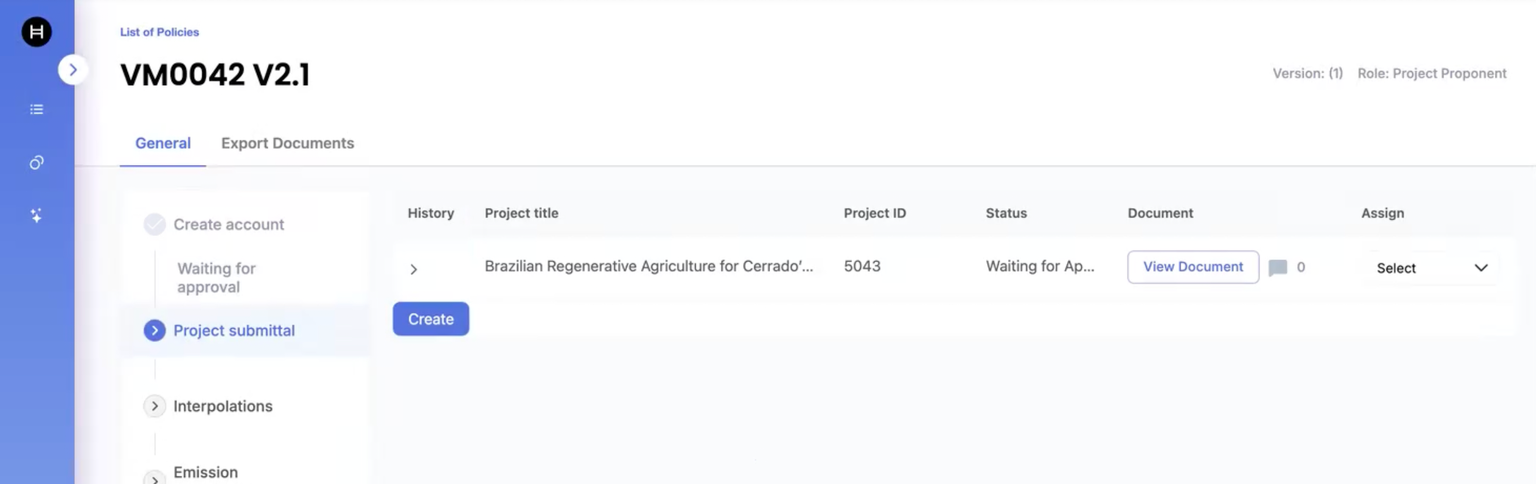
6. Submit the Project Data as Project Proponent:
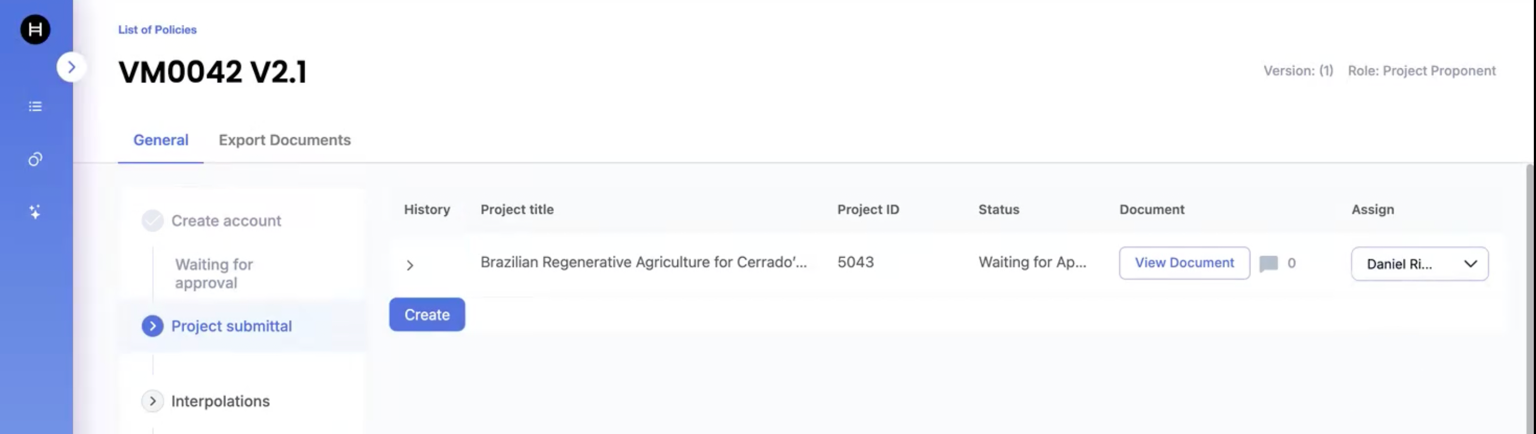
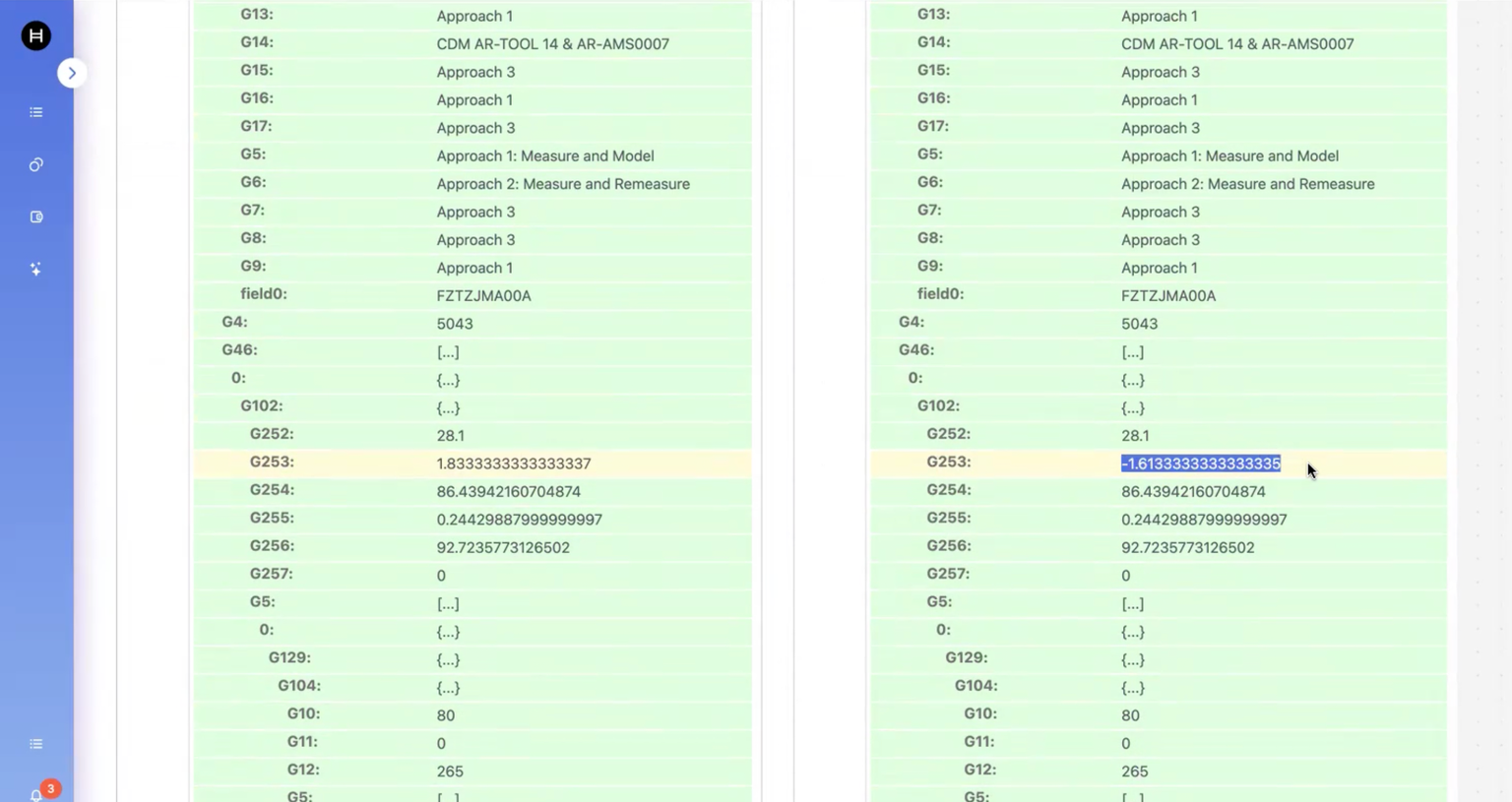
7. Assign the VVB to the submitted Project for review:
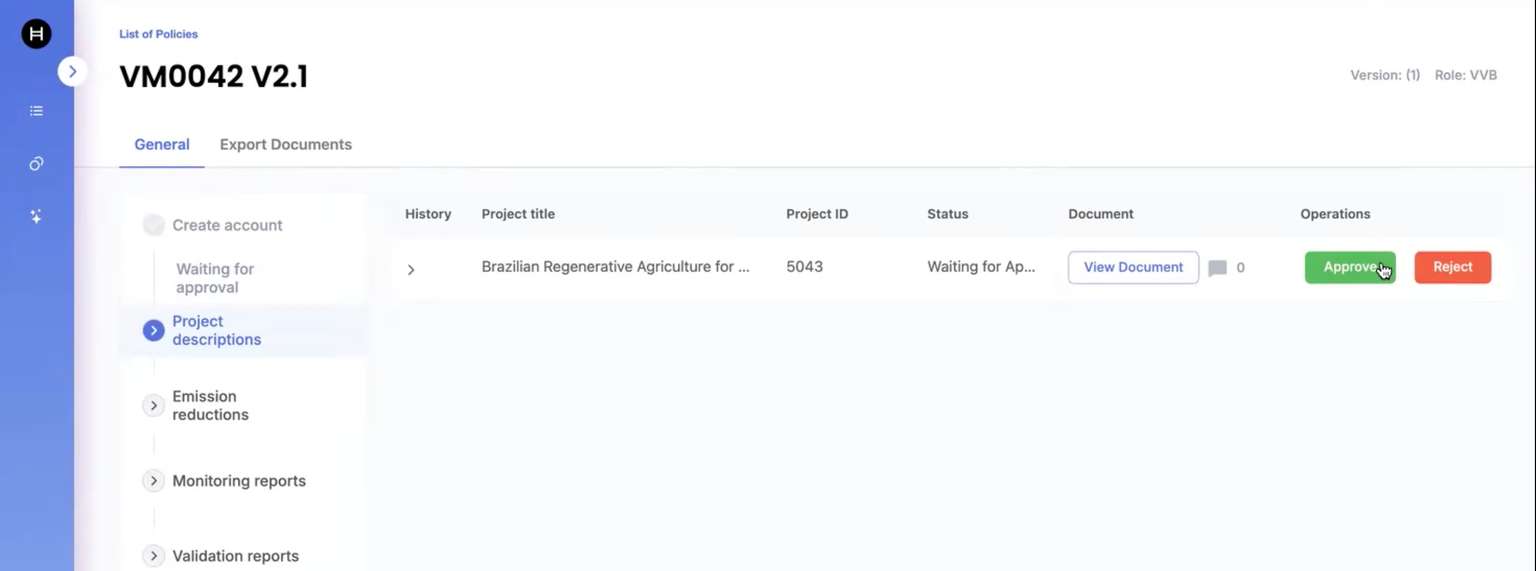
8. Login as VVB and approve it:
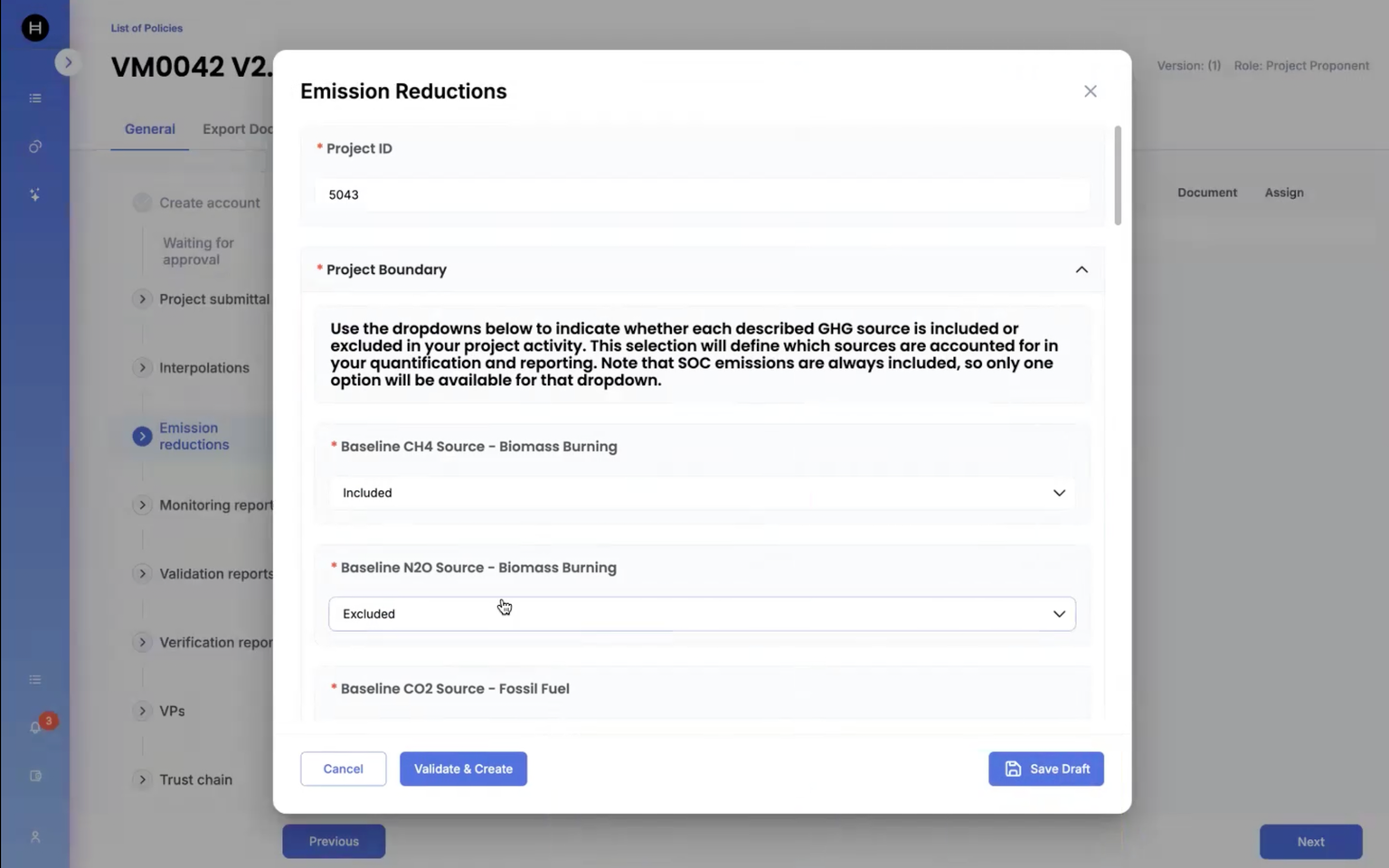
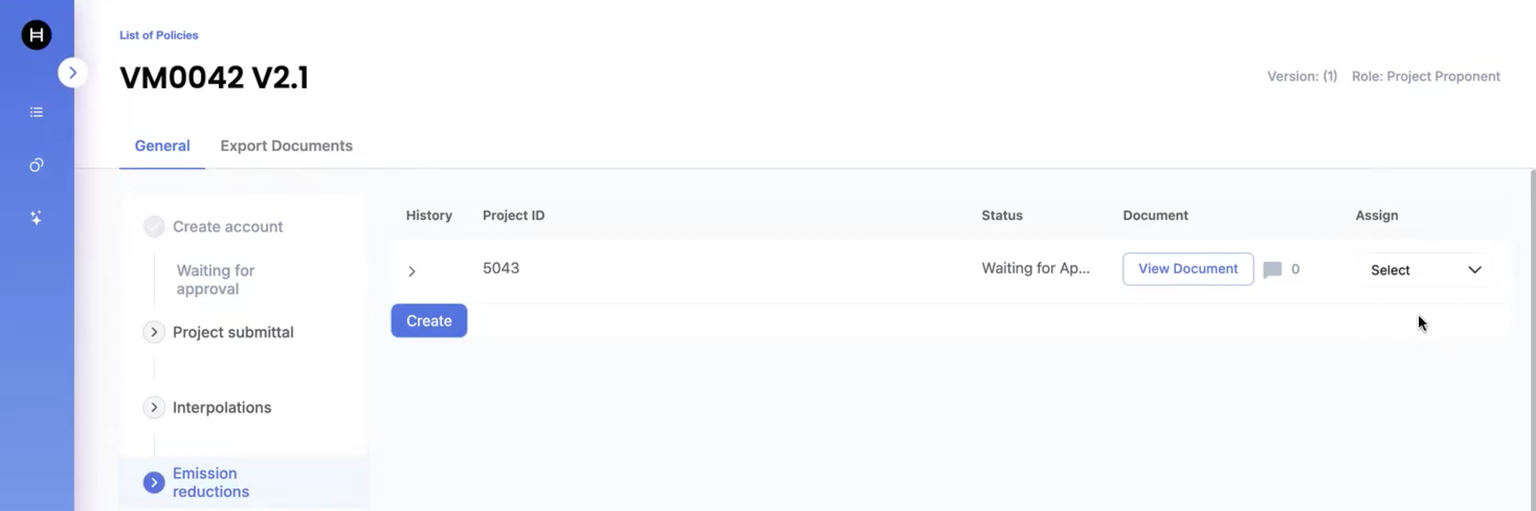
9. Now, I login as Project Proponent and submit the Emission Reduction data where the Emission factor of Calcimite is taken as a default value as 0.12:
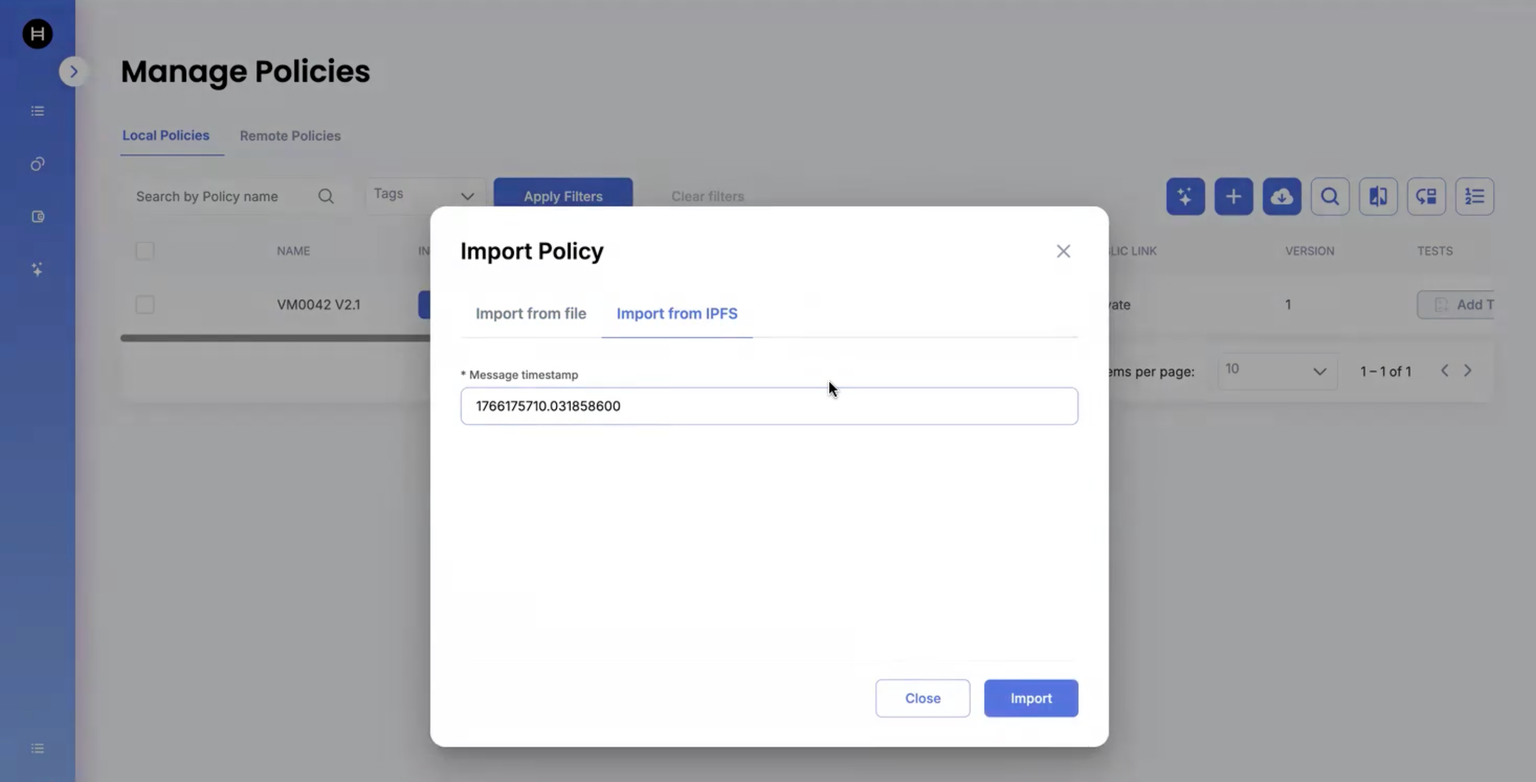
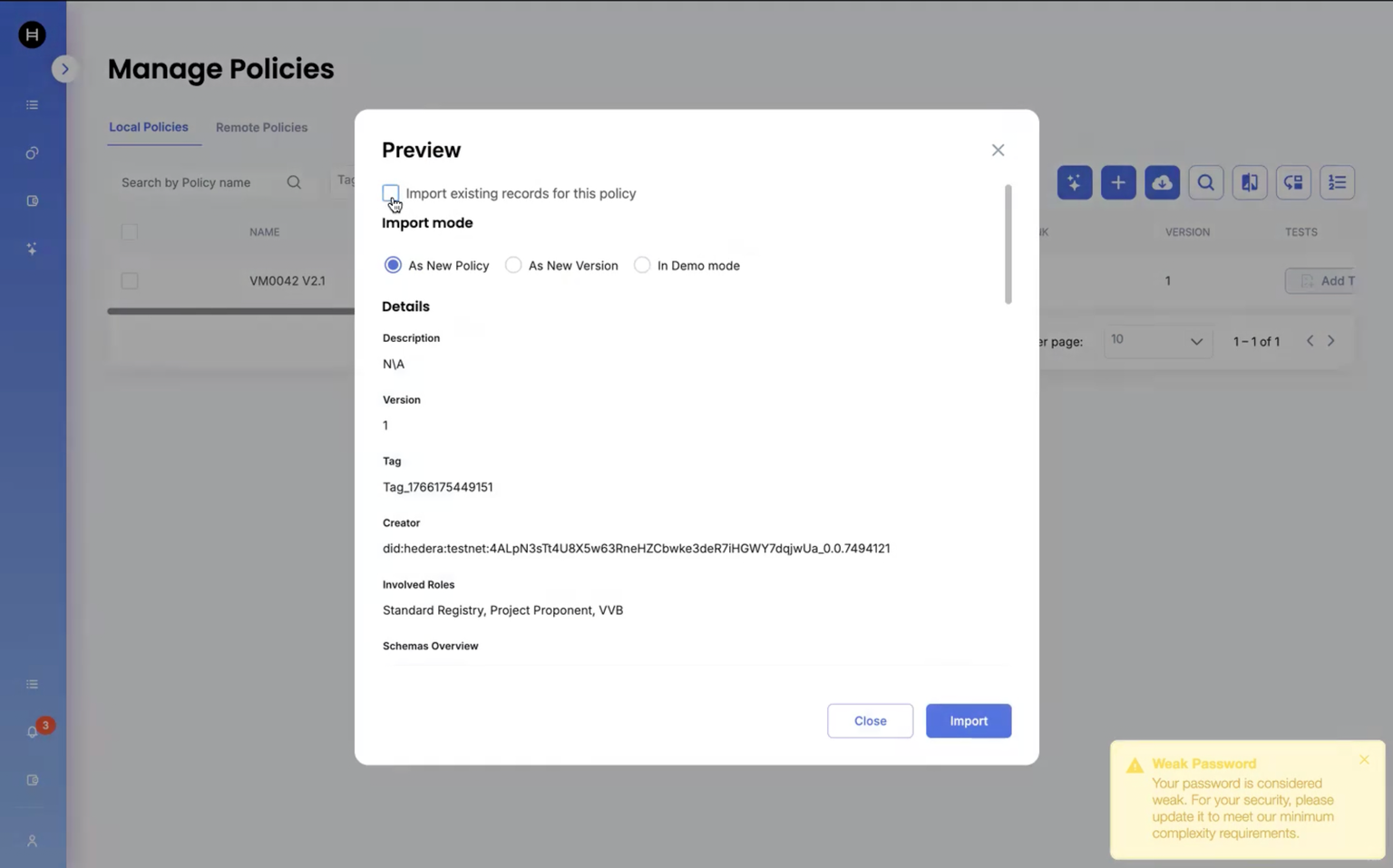
10. Now, I copy the message identifier of this policy in order to import it.
Also, check: **☑ Import existing record for this policy** during the import
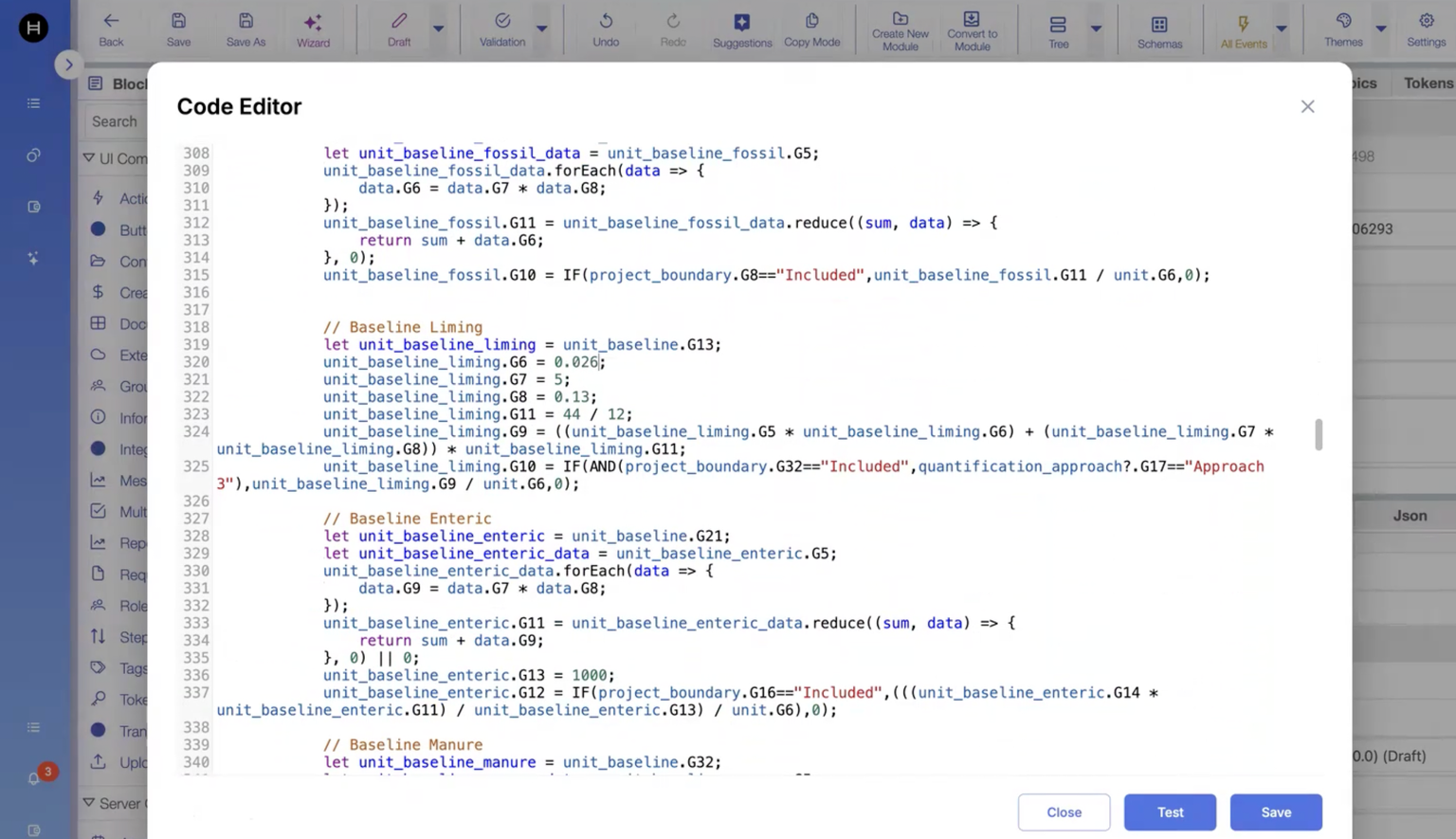
11. Now, I would change the Emission Factor of Calcimite from 0.12 to 0.026 in the policy configurator in draft status and then save it.
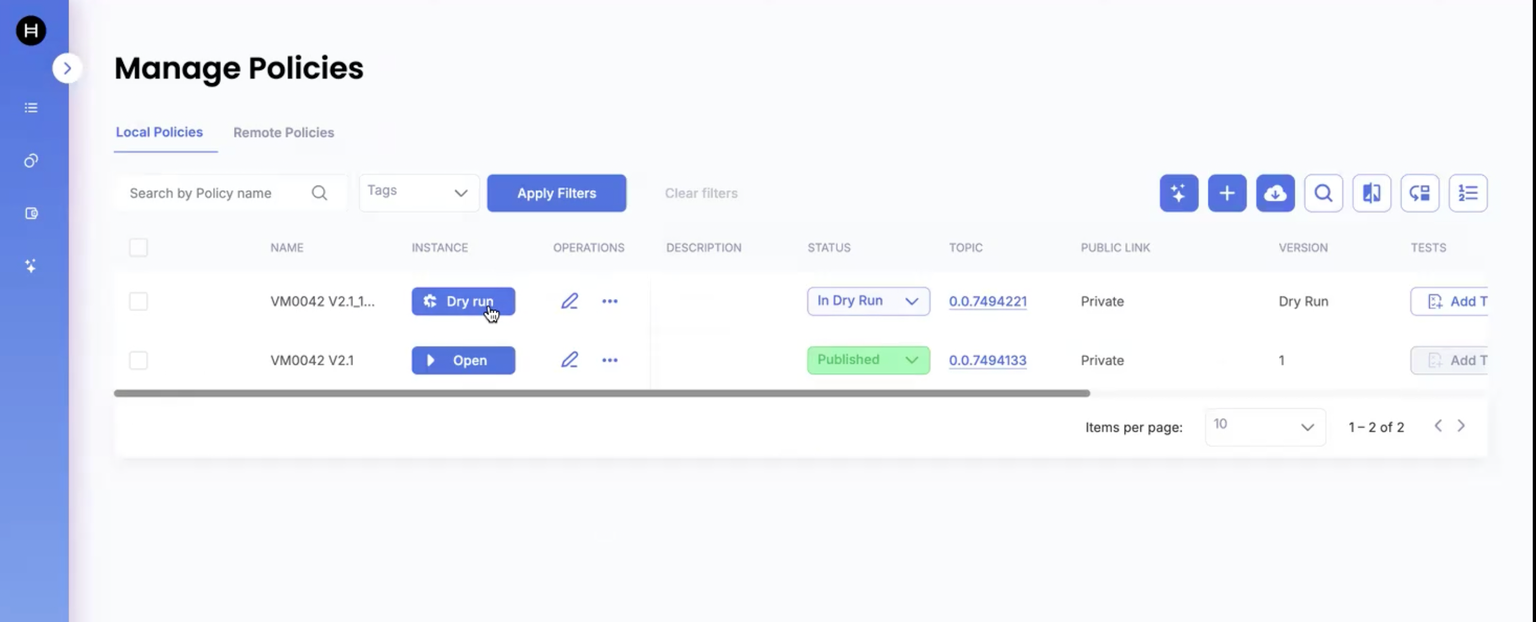
12. Now, we run the policy in the dry run mode:
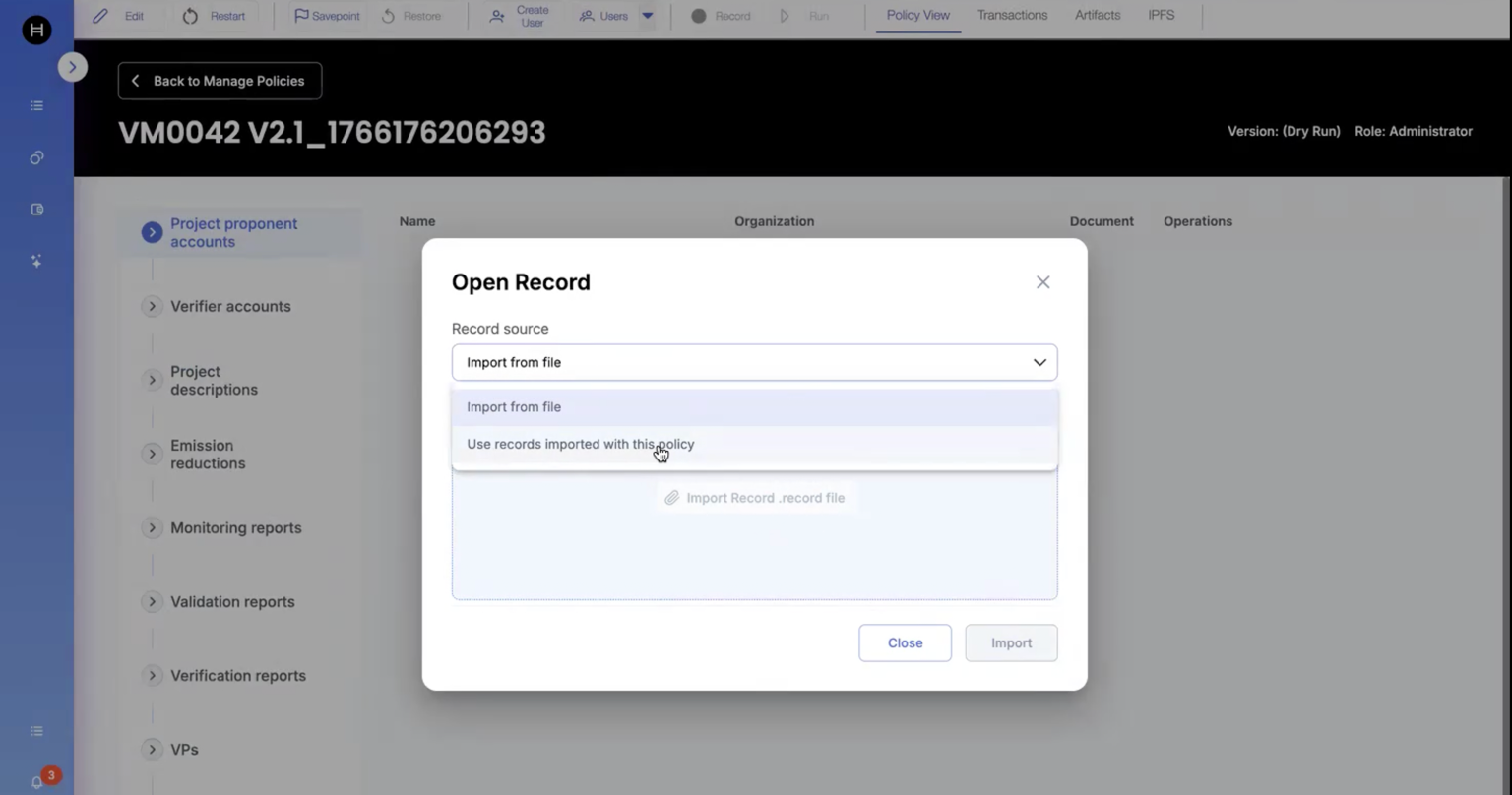
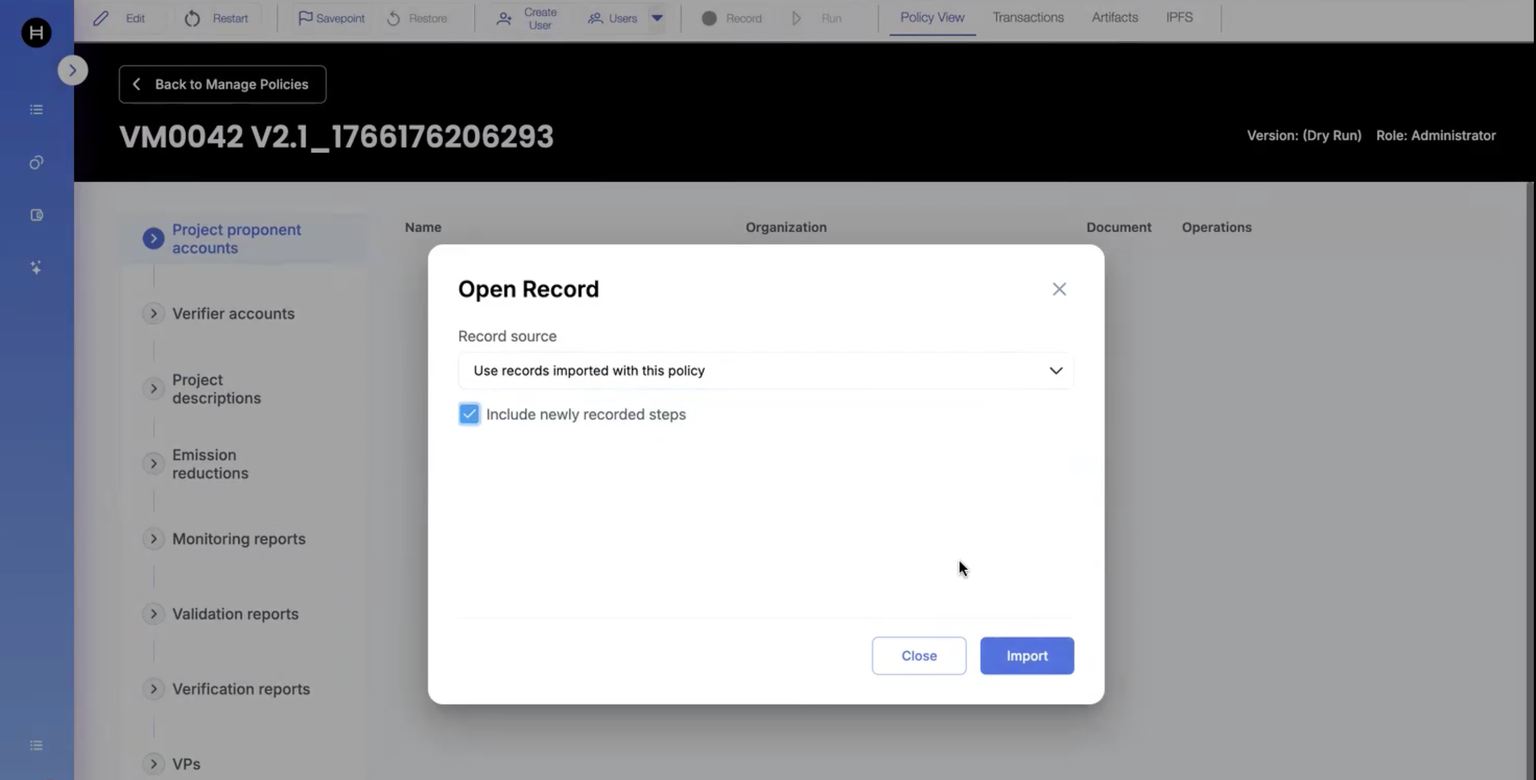
13. We now click on "Run" by enabling: **☑ Use records imported with this policy**
Optional: Also, include newly recorded steps (steps that were recorded after policy with the steps was imported)
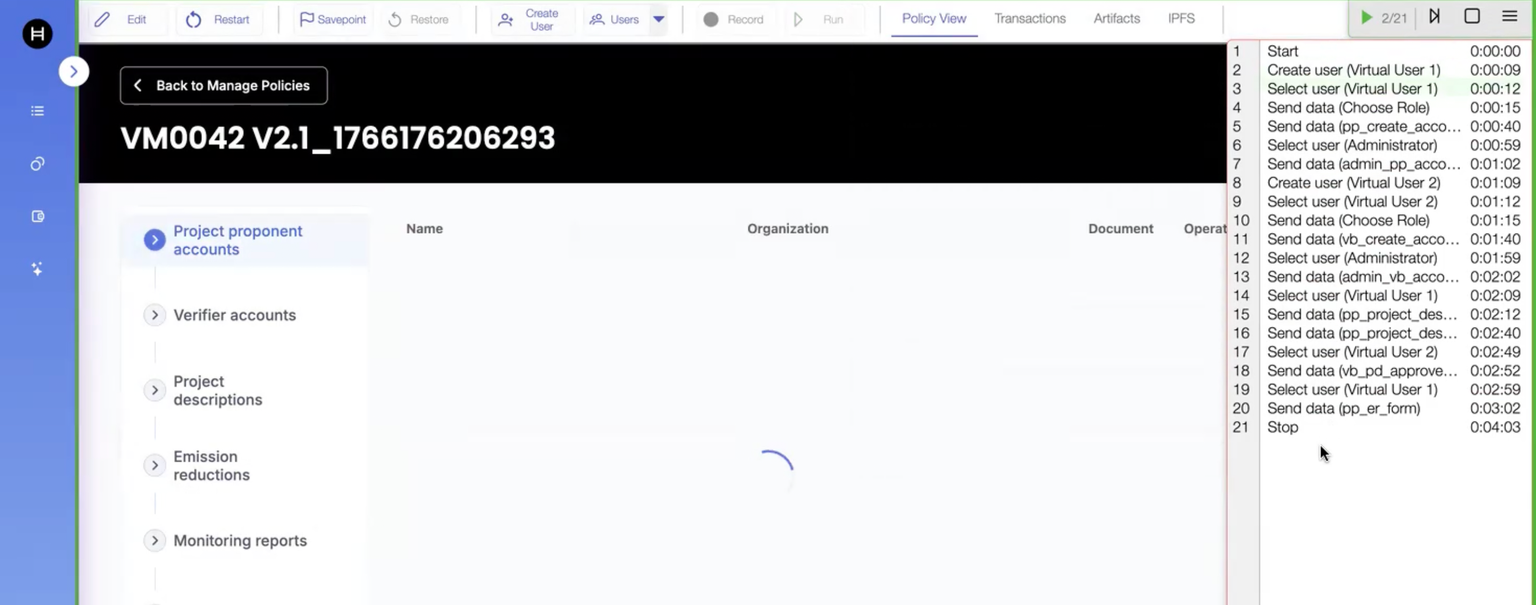
14. We should be able to see all the recorded steps when clicked on "Run"
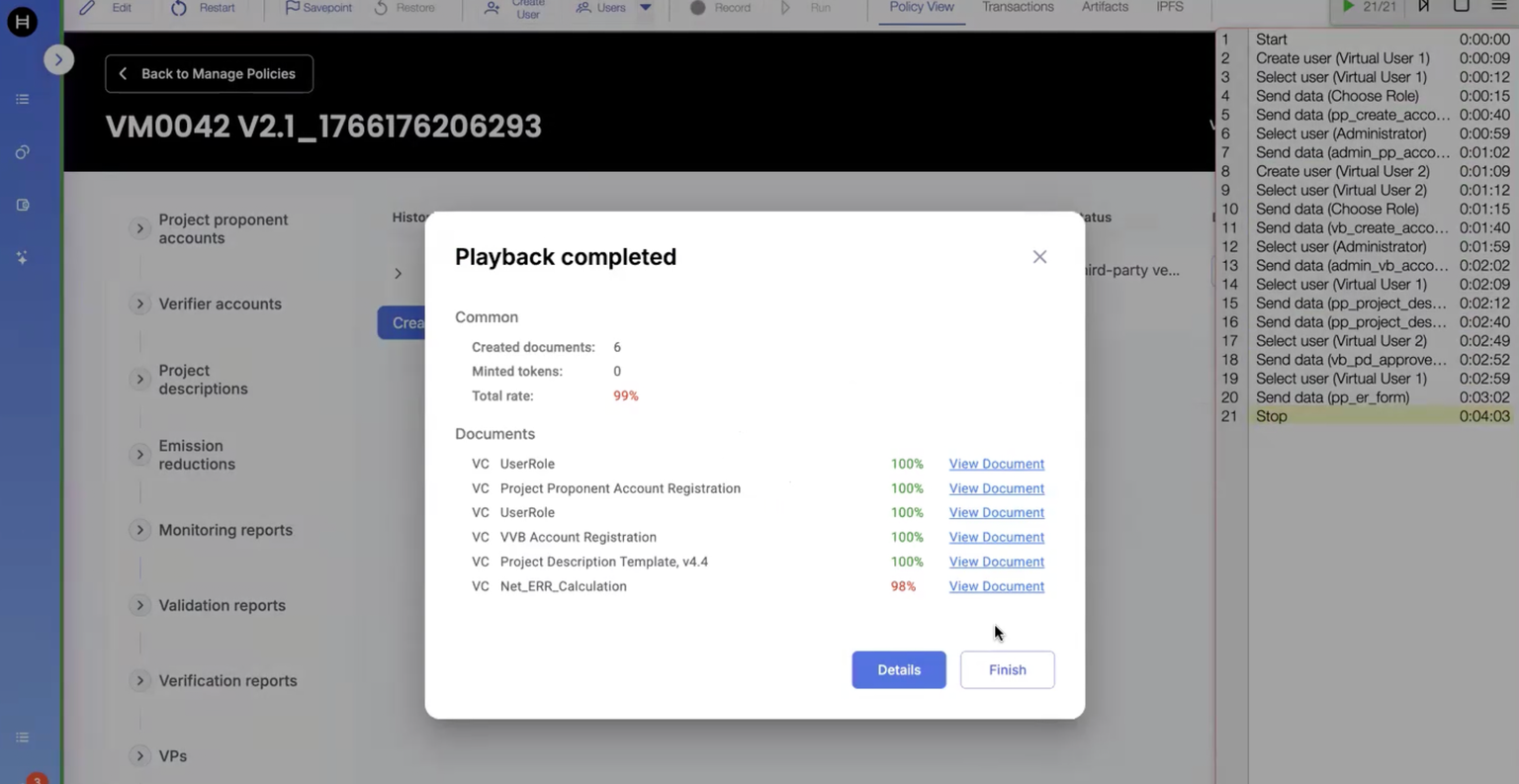
15. We can also view the Playback information:
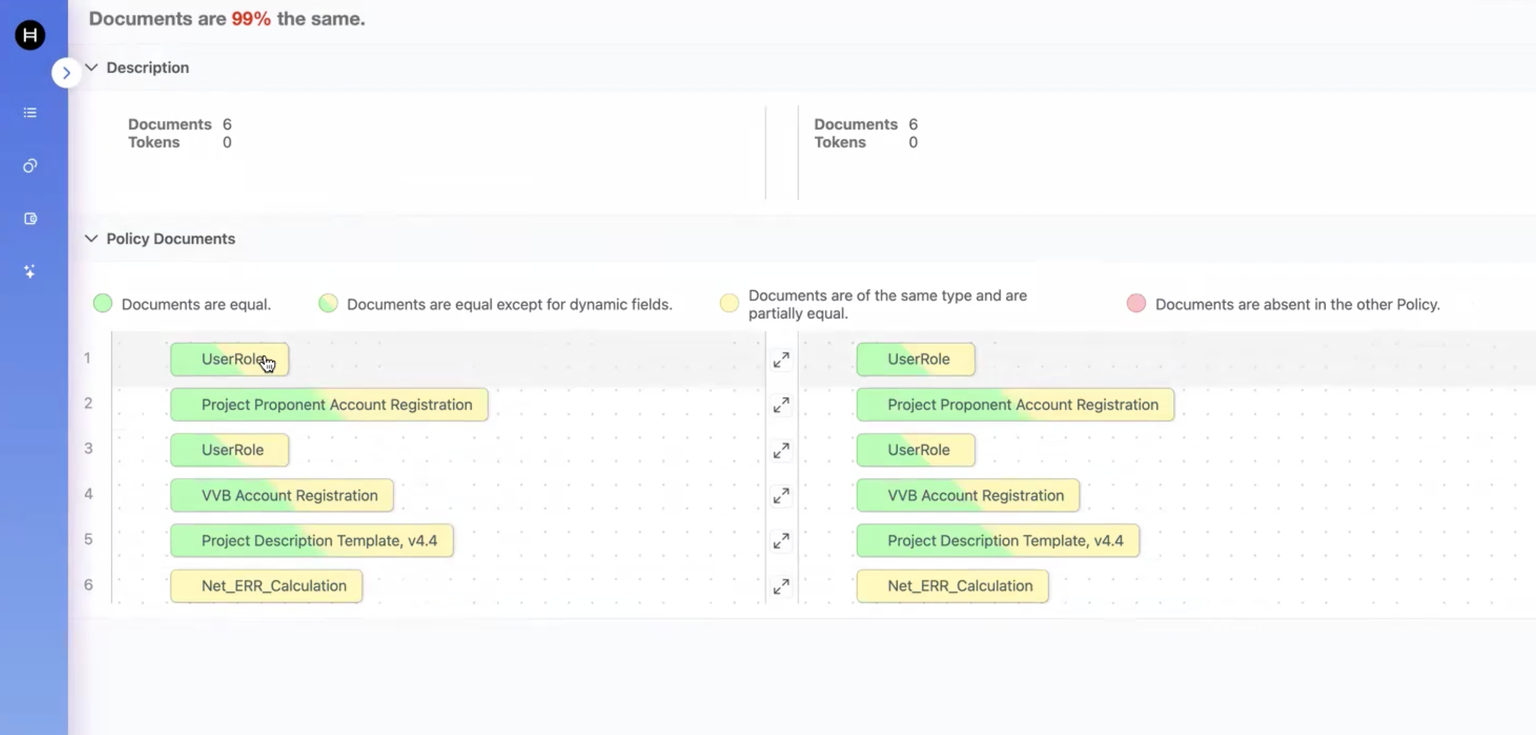
16. Documents can be compared by clicking on "Details" button: