> For the complete documentation index, see [llms.txt](https://docs.guardianservice.app/llms.txt). Markdown versions of documentation pages are available by appending `.md` to page URLs; this page is available as [Markdown](https://docs.guardianservice.app/technical-information/tenant-admins/ipfs-storage-providers/filebase/integrating-filebase-with-mgs-tenants.md).
# Integrating filebase with MGS Tenants
**Tenant Configuration**
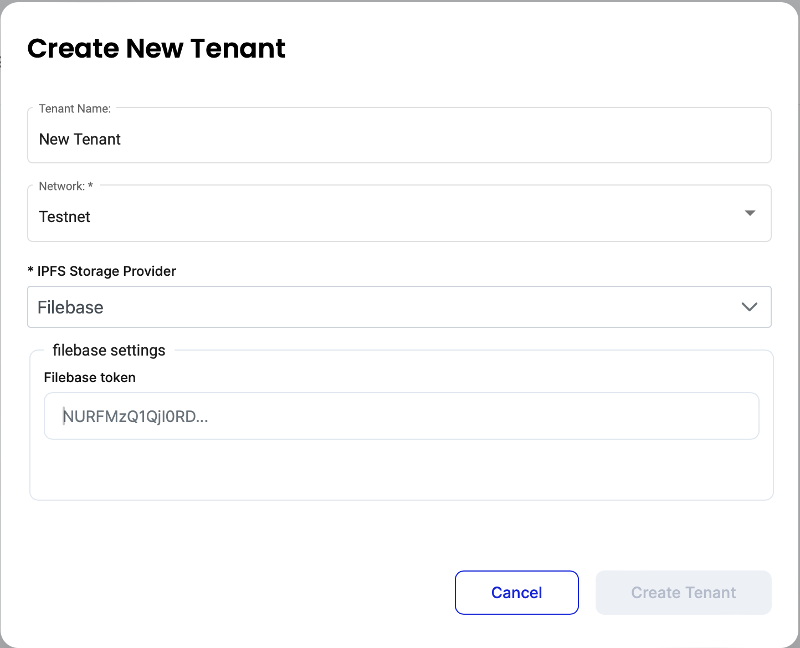
Now, with a Secret Access Token generated, you can proceed with configuring a new or existing tenant in MGS. If you wish to create a new tenant, log in as Tenant Admin, select the ‘Tenants’ menu option, and click ‘+ Add New Tenant’. In the modal window, enter the Tenant Name, choose the appropriate Network from the list, and select ‘filebase’ among the IPFS Storage Provider options. In the ‘filebase token’ field, enter the Secret Access Token you copied earlier. Click the ‘Create Tenant’ button to finalize the creation of this tenant.
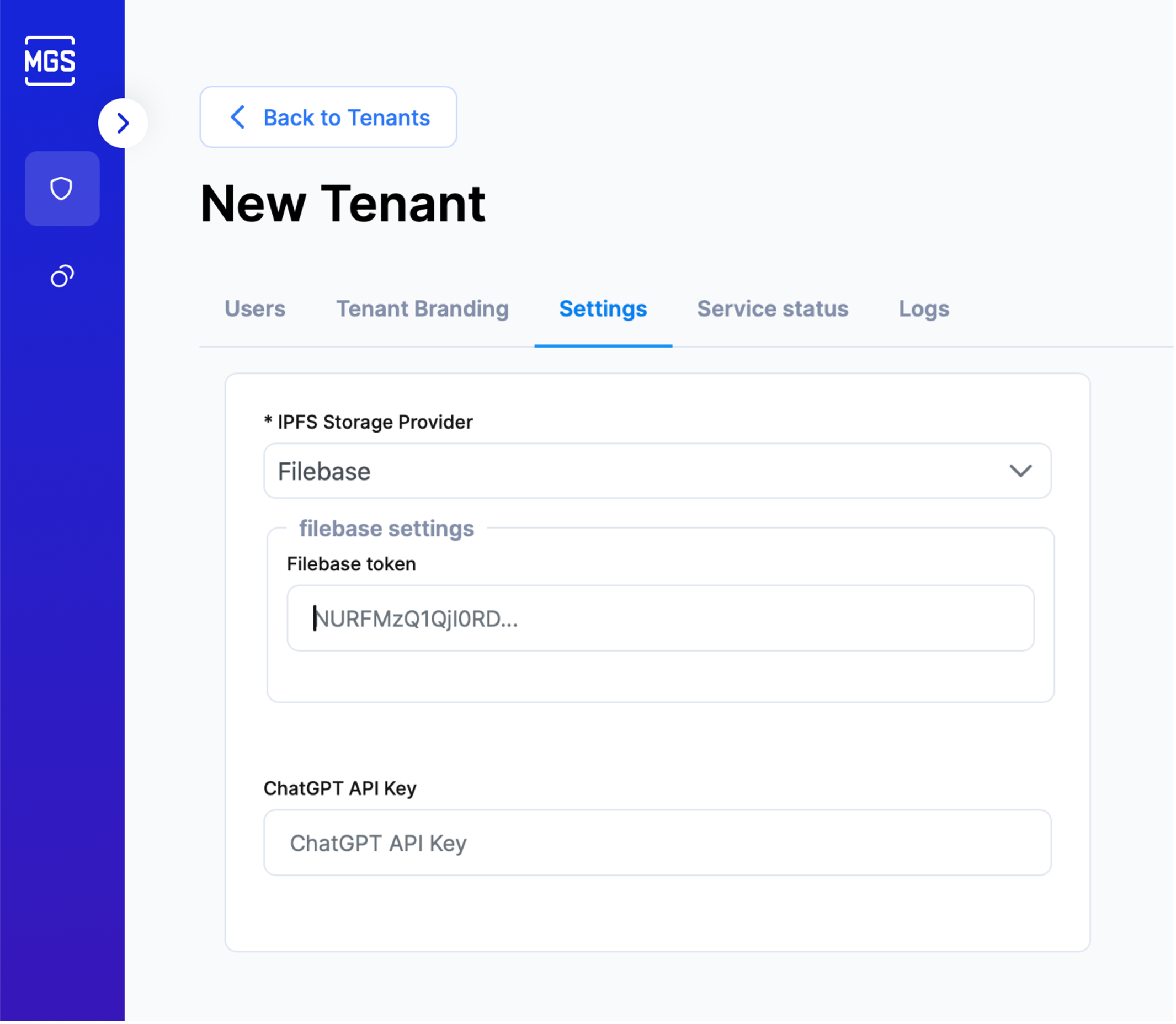
If you need to change the IPFS Storage Provider for an existing tenant, select the ‘Tenants’ menu item, find the tenant, and click the ‘Open’ button. Then, go to the Settings tab, select ‘filebase’ from the IPFS Storage Provider list, and paste the Secret Access Token you copied earlier into the filebase token field. Click the Save Changes button at the bottom of the page to apply your changes.