> For the complete documentation index, see [llms.txt](https://docs.guardianservice.app/llms.txt). Markdown versions of documentation pages are available by appending `.md` to page URLs; this page is available as [Markdown](https://docs.guardianservice.app/technical-information/complex-iterative-review-and-approval-workflows/demo-using-ui.md).
# Demo using UI
## 1. Document reviews
### 1.1 Overview
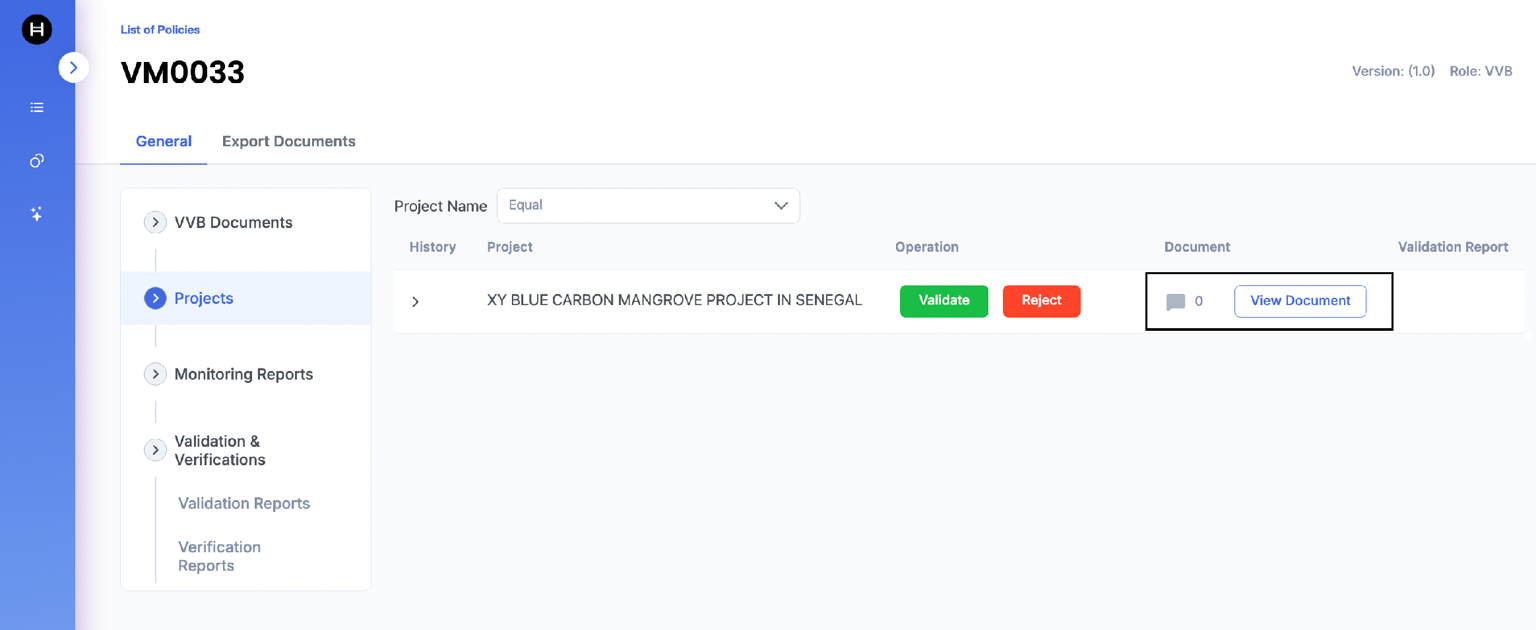
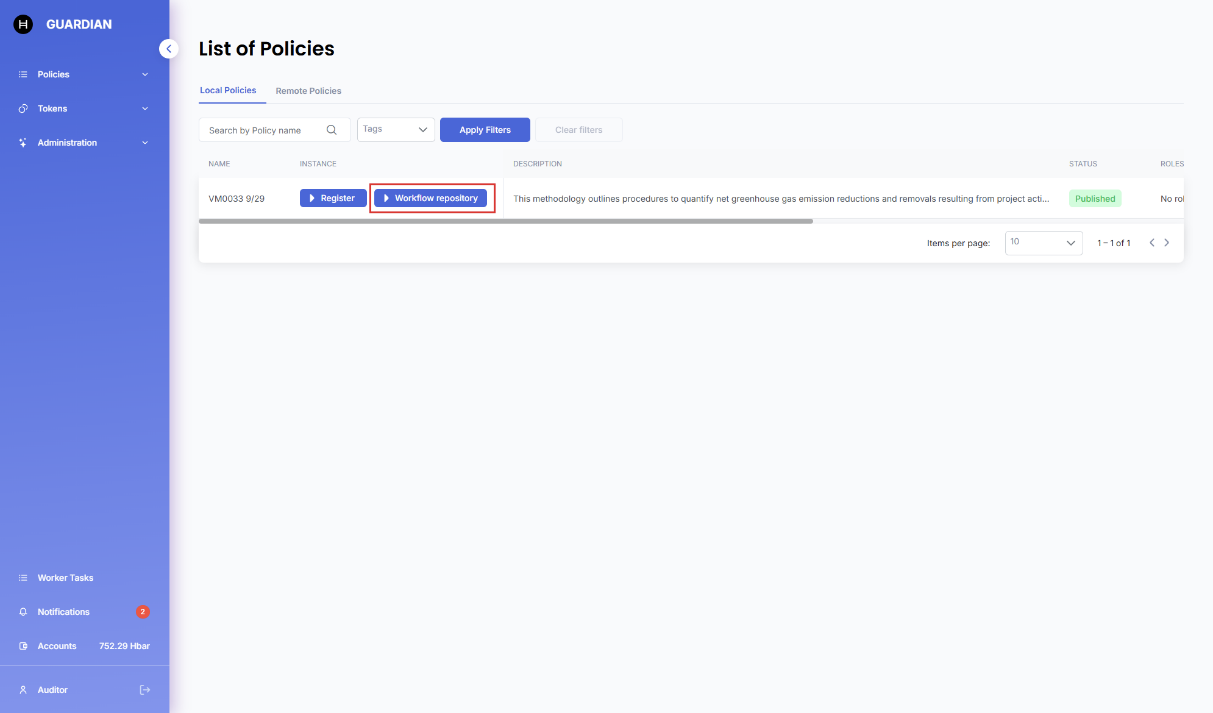
To enable document reviews within a policy, a corresponding button must be made available in the grid. (This button is combined with the document view function.)
This button will appear in the grid for documents, showing a number of existing comments for each of them.
### 1.2 Discussions
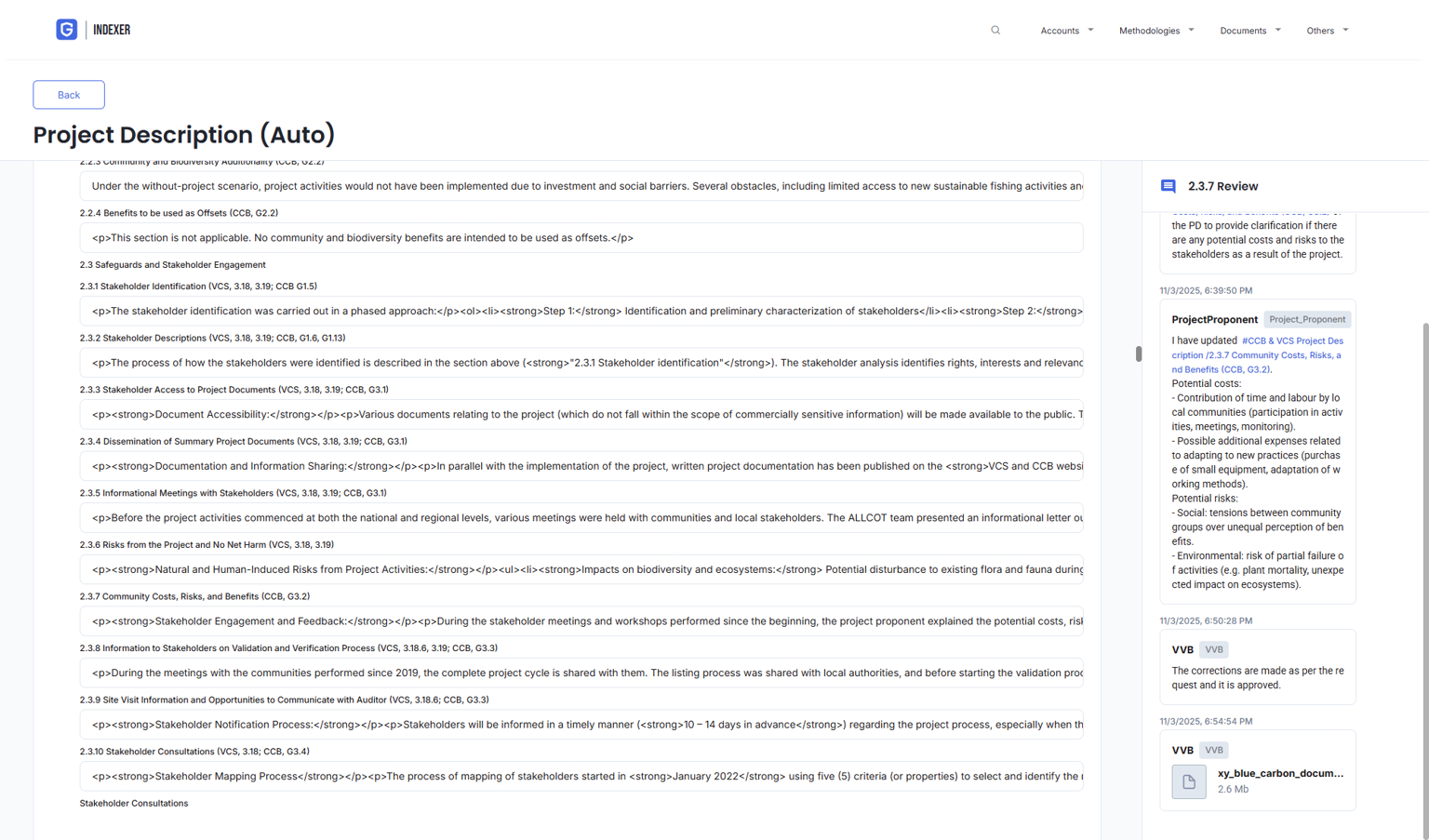
When opening a comments section a list of discussions is displayed. To create a comment, users must either select an existing discussion or create a new one.
### **1.2.1 Creating a Discussion**
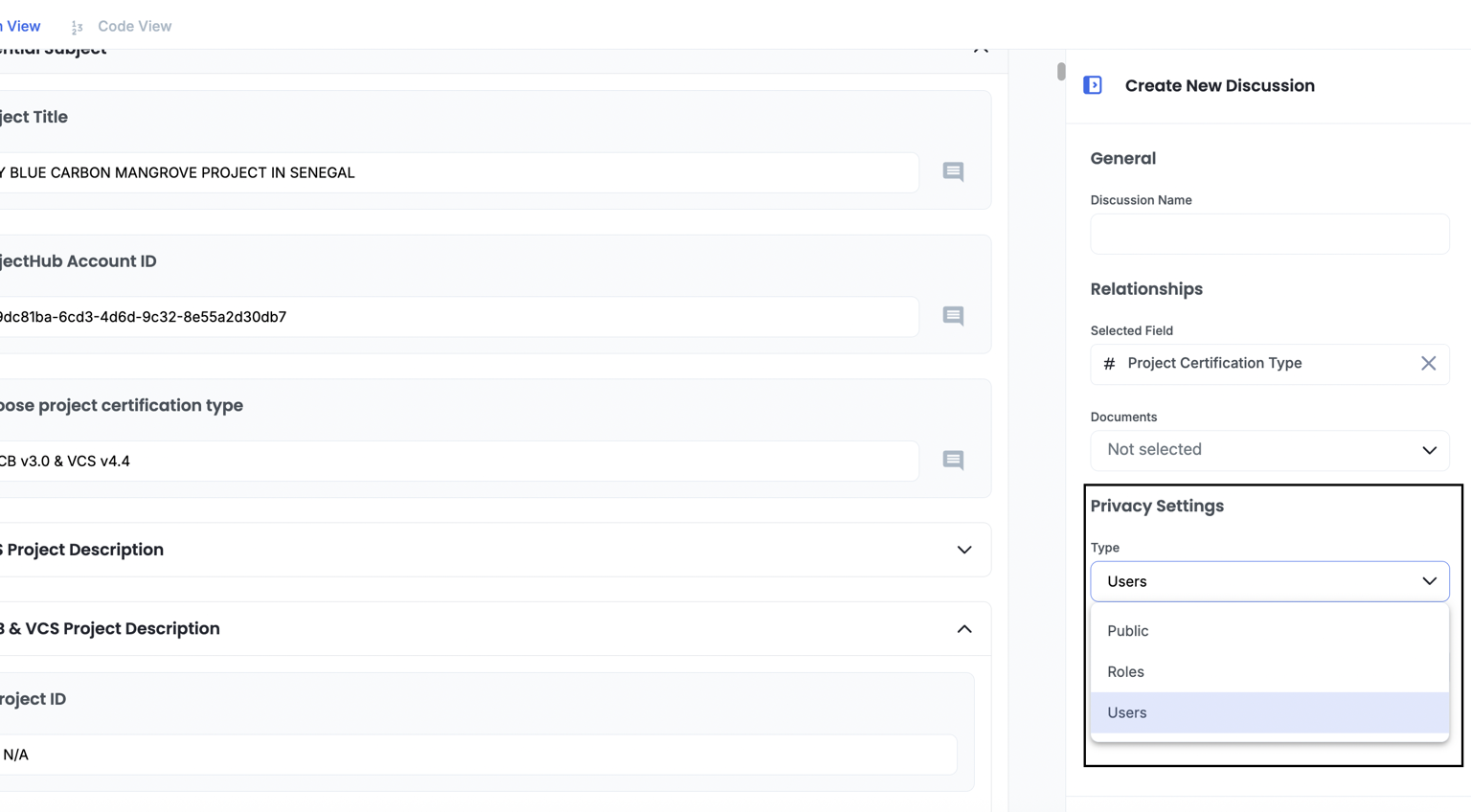
To create a discussion several fields must be filled out:
**Discussion name** - arbitrary human readable name (usually used for indicating the topic of the discussion).
**Relationships** – references to other documents related to the current one.
Selecting document in the ‘relationships’ will cause the discussion to be shown when viewing them as well.
You can also link a discussion to a specific field in the document by adding a field reference.
1. **Visibility Scope** The visibility scope determines who can see a given discussion.
a. **Public** – all users who have access to the document
b. **Roles** – users with specific roles (and the creator of the discussion)
c. **Users** – only specified users (and the creator of the discussion)
#### **1.2.2 Viewing**
You can search for the desired discussion using a **search** function.
Also it is possible to search (filter) discussions based on their field links
The list of discussion participants can be viewed inside each discussion.
### 1.3 Messages
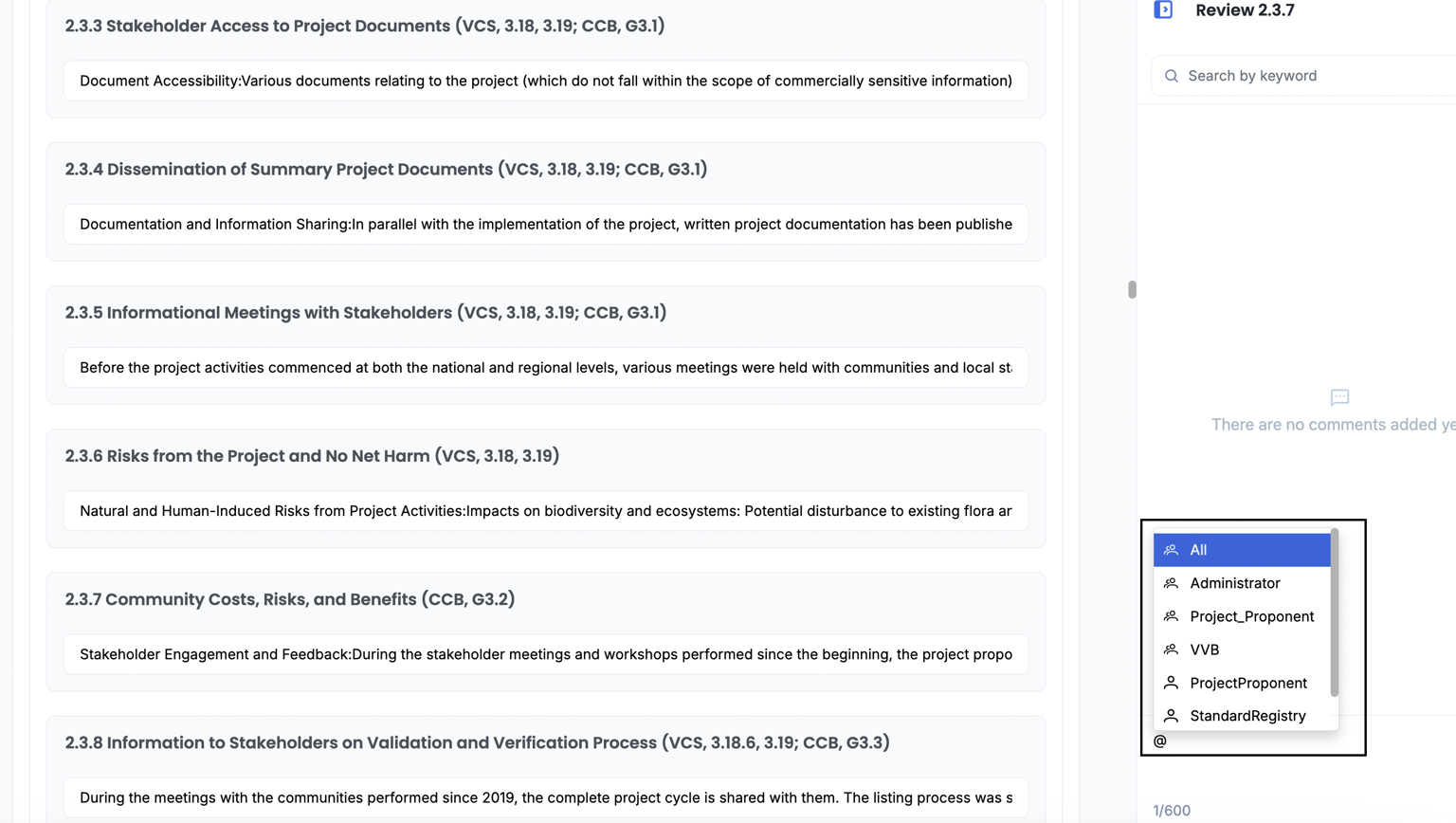
#### **1.3.1 User mentions**
Users can be mentioned in messages using @username notation.
#### **1.3.2 Field References**
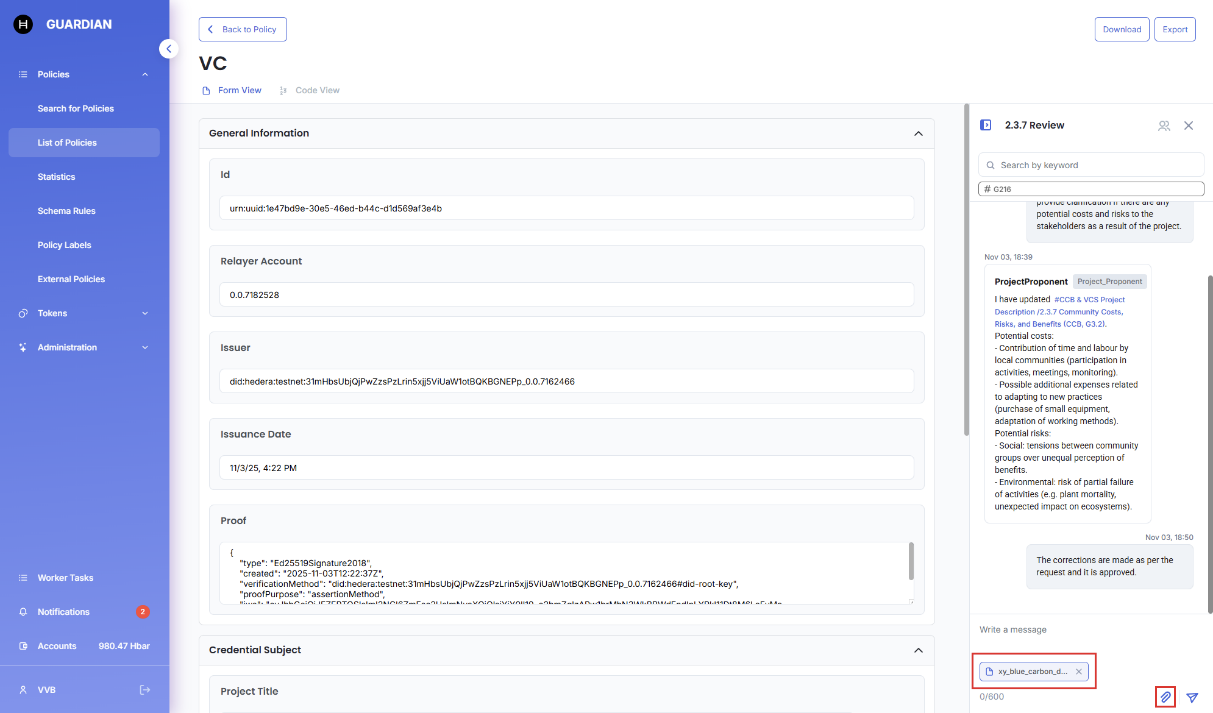
Fields in a document can be referenced in messages using #fieldname notation.
Fields in a document can be referenced in messages also using the link button.
#### **1.3.3 Attachments**
Files can be attached to messages.
Files, as well as messages, are encrypted and stored in IPFS.
Hedera Topics contain messages with meta-information and links to the corresponding document and attached files.
## 2. Document Revisions
### 2.1 Configuration
To allow document revision, a corresponding button (requestVcDocumentBlock) must be added. To configure requestVcDocumentBlock to enable editing, the operation type must be set to Edit.
### 2.2 Events
As with creating a new document, editing a document revision triggers a standard event that saves a new version of the document.
The old revision of the document is automatically marked as outdated. To hide ‘outdated’ revisions of the documents from the grid, enable “Hide previous versions.”
## 3. Access control
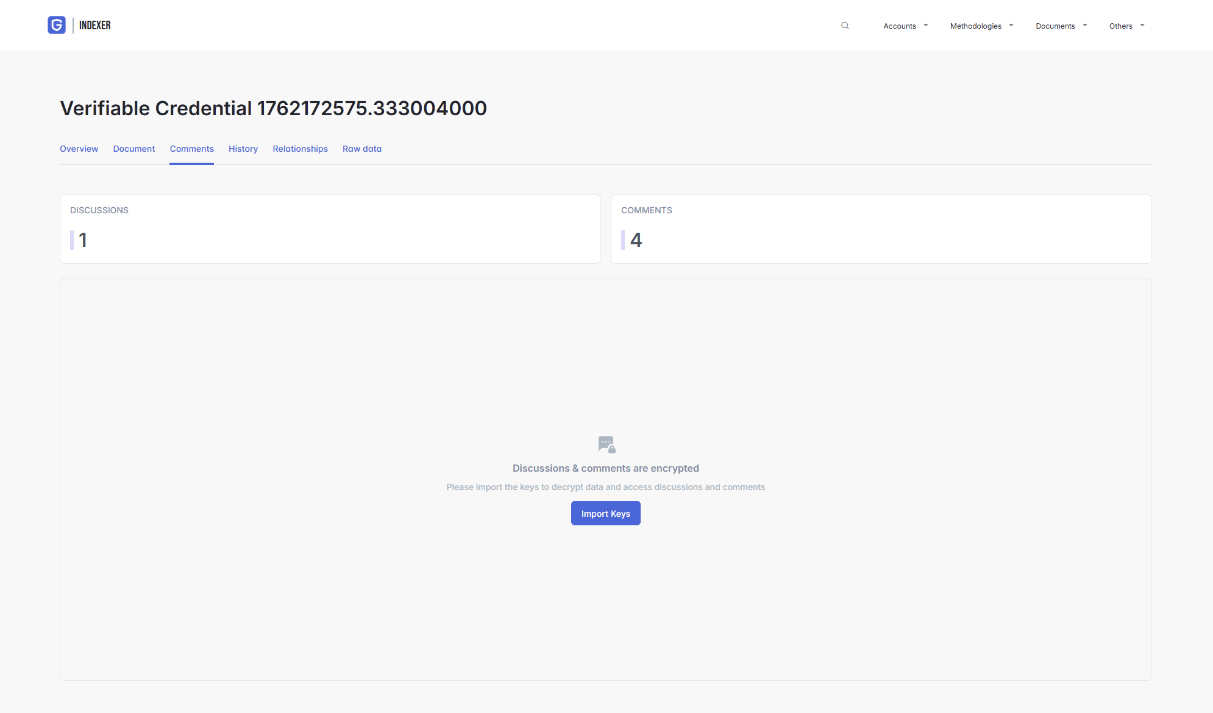
Since discussions are published encrypted, keys are required to access (e.g. for audits) their content - comments and attached documents.
### 3.1 Guardian user Permissions
To enable access to all policy artifacts, audit permission in the policy configuration must be assigned to the corresponding user/role.
### 3.2 Documents
Audit permission allows access to all documents within the policy.
#### **3.3 Encryption keys**
Audit permission grants access to discussion encryption keys. These keys make it possible to decrypt messages within discussions for verification purposes.
## 4. Indexer view
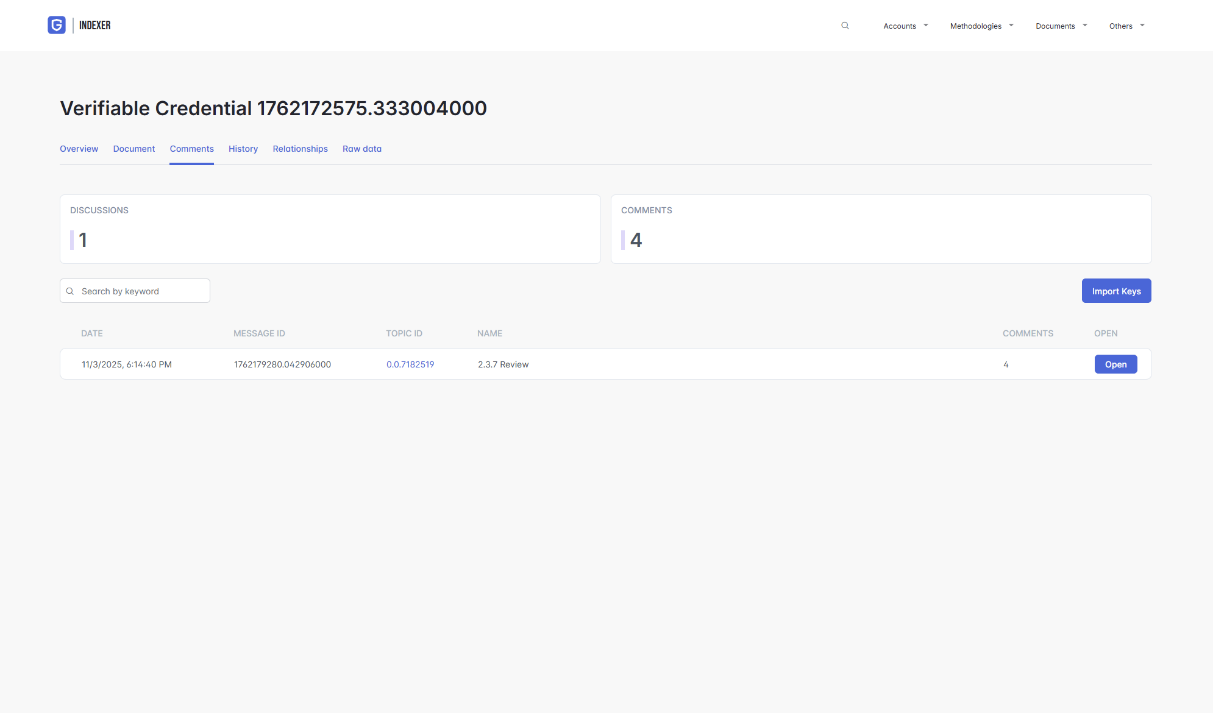
Because discussion content is published encrypted, to view their content Indexer users need to provide the corresponding encryption keys.
When provided, keys are never stored. They are used solely within the current user session to decrypt messages encrypted with the corresponding key, which are automatically identified by the Indexer.